HVAC Invoice Generator and Online Templates
Create HVAC invoices online with itemized services, labor, and parts. Choose a template, customize your details, and download a free, print-ready PDF.
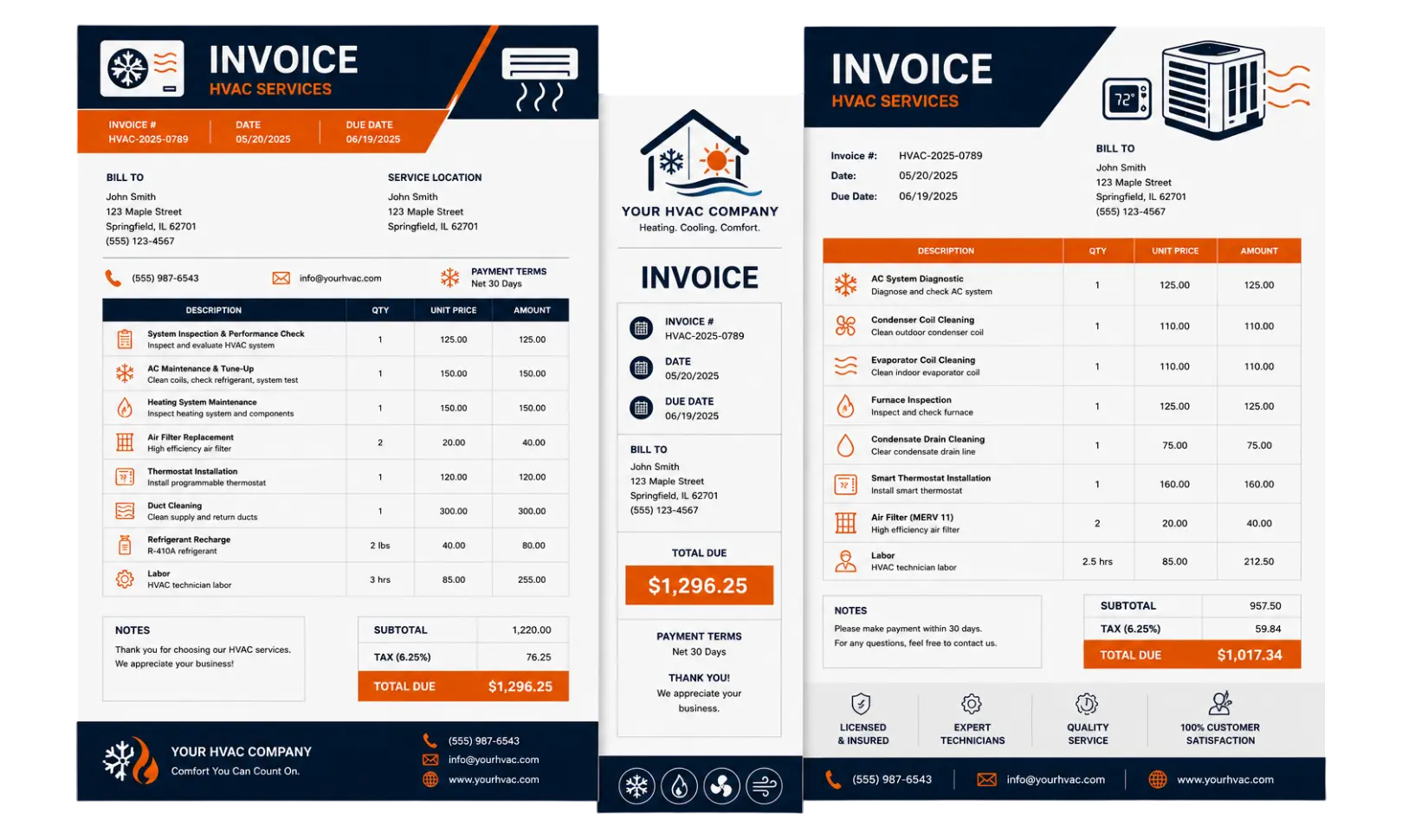
Choose an Online HVAC Invoice Template
Select a design below to start building your HVAC Invoice.
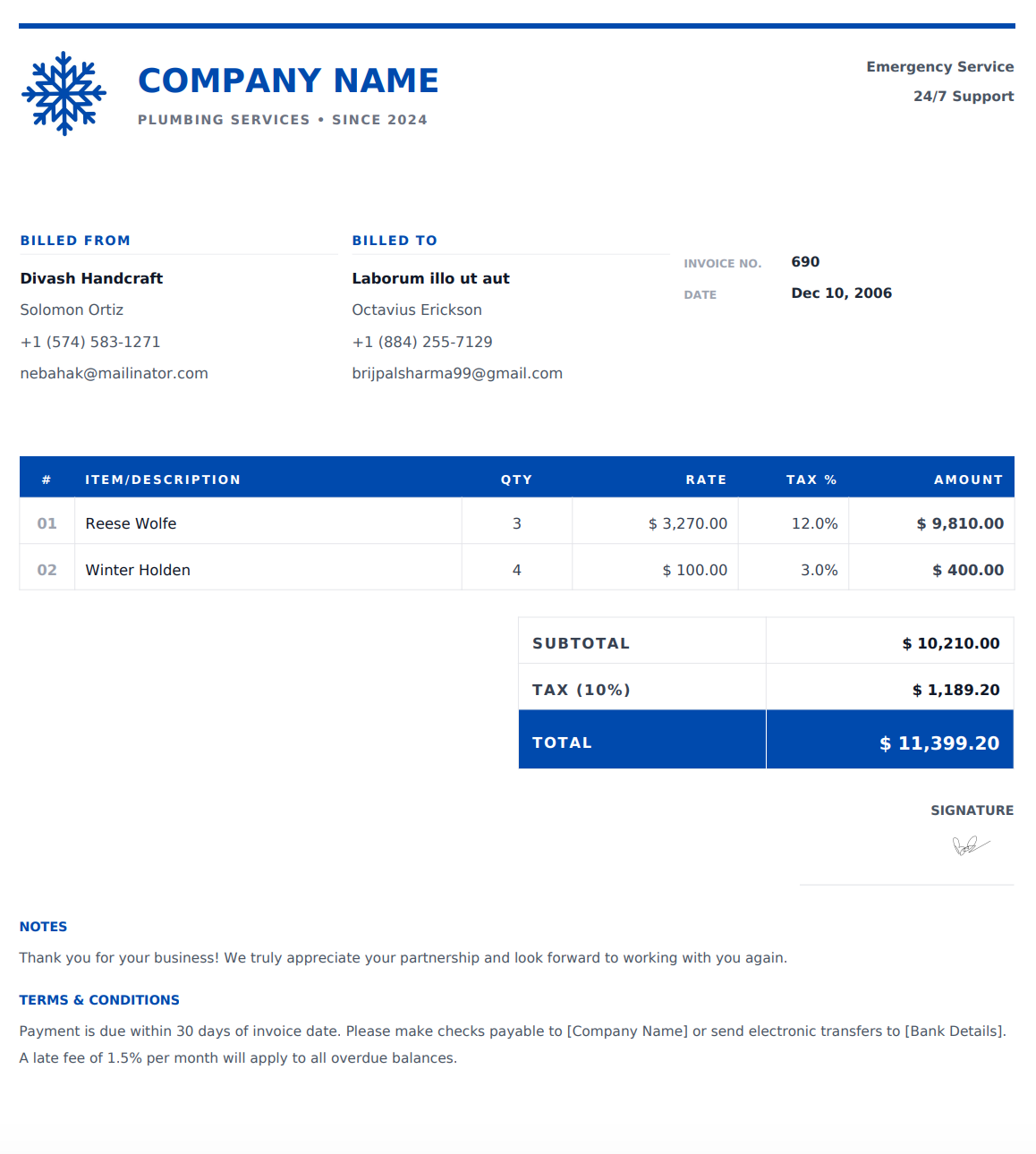
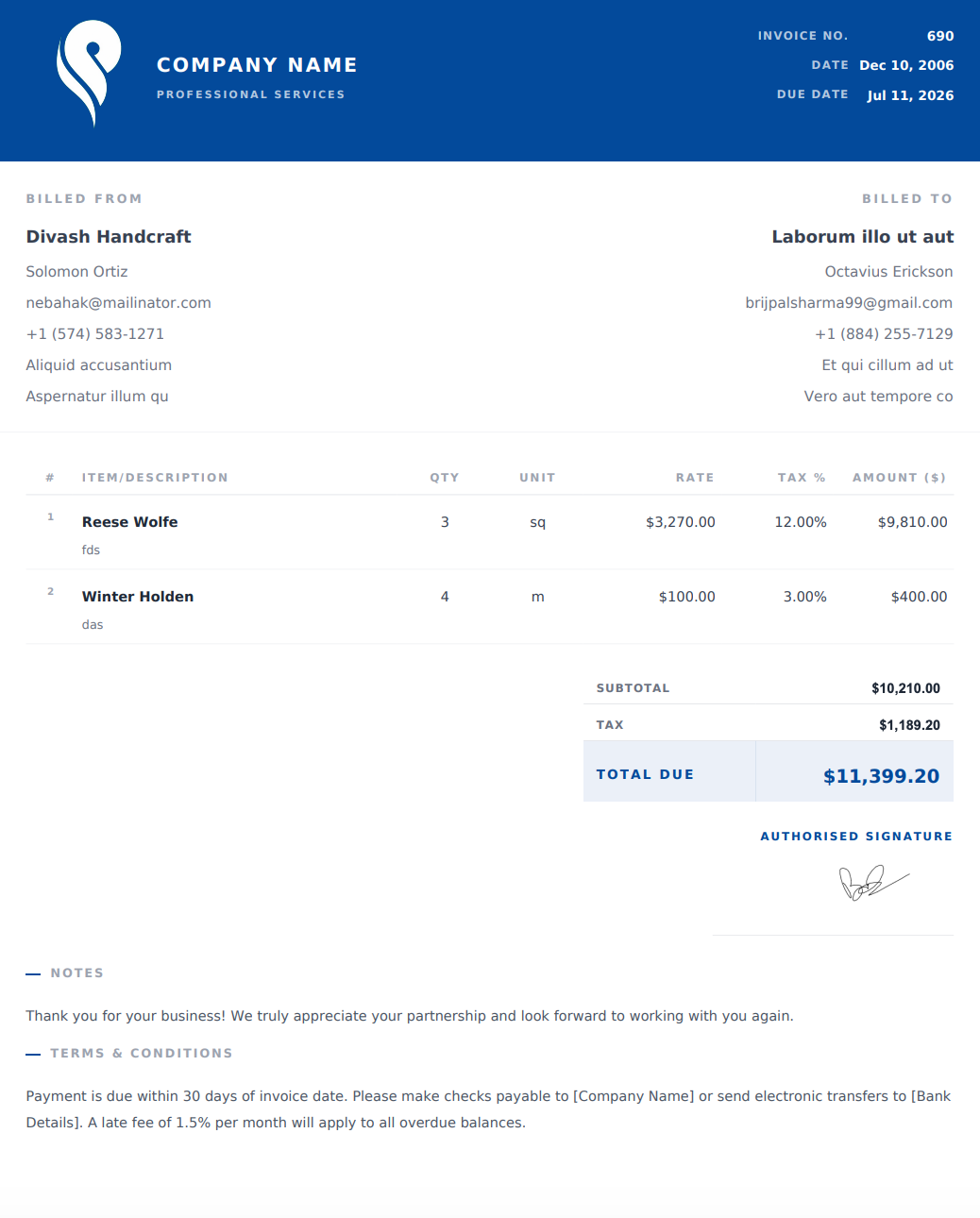
How to Create an HVAC Invoice Online
1. Add Your Business and Customer Details
Enter your HVAC business name, contact information, and logo. Add the customer’s name, billing details, and service address to identify the job.
2. Describe the Equipment and Work Performed
List the services completed, such as AC troubleshooting, furnace maintenance, or heat pump installation. Include the equipment type, location, or model in the description or notes where useful.
3. Enter Labor, Parts, and Service Charges
Add quantities and rates for labor, replacement parts, and materials. Clearly identify any agreed diagnostic, call-out, or after-hours charges. Include applicable taxes and discounts; the generator calculates the totals automatically.
4. Review and Download Your PDF
Add an invoice number, issue date, payment due date, and payment instructions. Review the job details and totals, then download your completed invoice as a PDF to email or print.
What to Include in an HVAC Invoice
A clear HVAC invoice connects each charge to the equipment serviced and the work performed. Include these details where relevant:
Business information: Your company name, address, phone number, email, and optional logo.
Customer and service details: The customer’s name, billing information, and service address.
Invoice information: A unique invoice number, issue date, service date, and payment due date.
Equipment details: The system type, location, make, or model where helpful.
Work description: The inspection, repair, installation, or maintenance tasks completed.
Labor and service charges: Hours and rates, or agreed fixed service charges.
Parts and materials: Descriptions, quantities, and prices for items supplied.
Cost breakdown: Subtotal, applicable taxes, discounts, and total amount due.
Payment instructions: Accepted payment methods and agreed payment terms.
Service notes: Relevant maintenance recommendations or references to warranty documents provided separately.
If the customer has already made a deposit or progress payment, clearly account for it when stating the remaining balance.
Common HVAC Invoice Line Items
Use descriptions that identify the service or component rather than a general label such as “HVAC work.”
Service or Material | Details to Include |
|---|---|
Diagnostic visit | Equipment checked, issue investigated, and service charge |
Air conditioning repair | Repair performed and components replaced |
Furnace maintenance | System serviced and maintenance tasks completed |
Heat pump installation | Equipment description and installation charges |
Thermostat replacement | Thermostat model, quantity, and installation labor |
Ductwork repair or installation | Location, materials, and scope of work |
Filter replacement | Filter type, size, and quantity |
Replacement parts | Component description, quantity, and price |
HVAC labor | Hours and rate, or an agreed fixed charge |
Emergency call-out | Agreed call-out or after-hours fee |
If a diagnostic fee is credited toward a repair, make that adjustment clear so the customer can follow the total.
Online Invoice Designs for HVAC Service and Installation Jobs
For a maintenance visit or a small repair, choose a simple design that highlights the service description and amount due. For equipment installations or jobs with several components, choose a layout that keeps labor, equipment, and materials easy to review.
Customize the invoice for heating, cooling, or ventilation work. Preview it with your actual job details before downloading, especially when descriptions include equipment information or detailed service notes.
Before You Send Your HVAC Invoice
Check the service address, equipment descriptions, parts, labor charges, and final balance. Make sure call-out fees and additional work match what was agreed with the customer.
For maintenance agreement visits, distinguish services covered by the agreement from any separately chargeable work. Include a job or purchase order reference where needed, state the agreed payment terms, and keep a copy of the final PDF.
Frequently Asked Questions
Is the HVAC invoice generator free to use?
Yes. You can create and customize HVAC invoices online for free, then download your completed invoices as watermark-free PDFs.
How do I use an online HVAC invoice template?
Choose a design from the template list to use it in the generator. Enter your business details, customer information, services, and charges, then preview and download the PDF. You can also start with the generator’s default design.
Can I customize my HVAC invoice?
Yes. You can add your company logo, business information, customer details, payment terms, and line items to match the job.
Can I use this for HVAC repairs, maintenance, and installations?
Yes. Customize the invoice for air conditioning repairs, furnace services, heat pump installations, ductwork, thermostat replacements, inspections, and maintenance visits.
Can I include equipment details?
Yes. Add relevant equipment information, such as the system type, make, model, or service location, in the item description or notes to help identify what was serviced.
Can I list multiple services and parts on one invoice?
Yes. Add separate line items for services, labor, equipment, and replacement parts, with the relevant quantities and rates.
Are these downloadable Word or Excel templates?
The templates on this page are for the online invoice generator. You customize your invoice on the website and download the completed document as a PDF.
Can I print or email my HVAC invoice?
Yes. Download the PDF, then attach it to an email, share it through your preferred messaging app, or print a copy.
Can I edit my invoice after downloading it?
If your details are still available in the generator, update them and download a new PDF. Changes will not update a PDF you have already downloaded. If your details are no longer available, you’ll need to enter them again.